
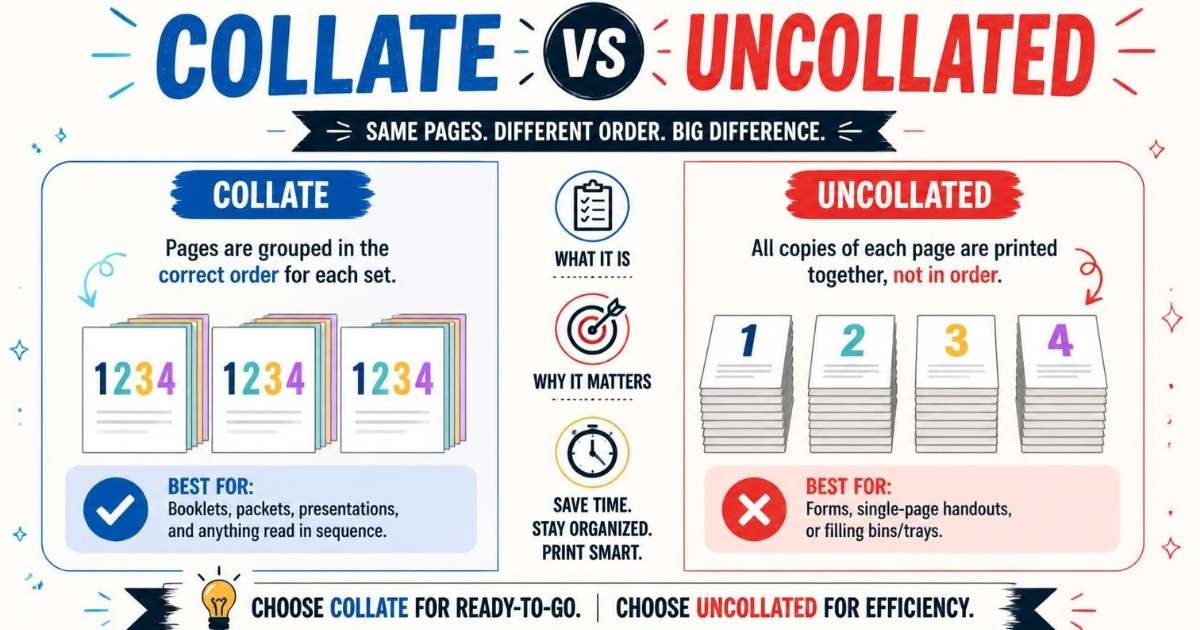
Ever printed several copies of a document and ended up with a giant pile of mixed pages? That frustrating mess usually comes down to one small printer setting. When you print multiple copies, you may notice options for Collate and Uncollate. But what do they actually do? Collate keeps each copy together in the right page order. Uncollate groups matching pages together instead. Once you see the difference, the setting becomes surprisingly easy to understand.
Collate vs uncollated printing can save you plenty of time when you’re handling reports, contracts, school assignments, manuals, or meeting packets. Choose the right option, and your pages come out ready to distribute. Choose the wrong one, and you may spend more time sorting than printing. The good news is that you don’t need technical knowledge to get it right. A simple example can make the whole process crystal clear.
What Does Collate Mean When Printing?
When you choose Collate in your print settings, your printer arranges pages into complete document sets. Each copy follows the correct page order from beginning to end.
For example, imagine printing three copies of a five-page report. With Collate enabled, you’ll receive:
- Copy 1: 1-2-3-4-5
- Copy 2: 1-2-3-4-5
- Copy 3: 1-2-3-4-5
Without collation, you may get all three page 1s first. Then you’ll receive all three page 2s.
That’s the basic difference between collated printing and uncollated printing.
The setting becomes especially useful when you print reports, contracts, employee handbooks, meeting packets, or school assignments.
You don’t need to manually arrange every page afterward. The printer or software handles the page sequence for you.
Conversation example:
You: “Why are my three copies already separated into sets?”
Printer user: “Because you turned on Collate.”
Why Printers Include a Collate Feature
Printers include Collate because multiple-copy jobs can become messy very quickly. Imagine printing 20 copies of a 10-page training manual.
Without collation, you’d have to manually sort hundreds of pages. That’s a tedious job with plenty of room for mistakes.
The Collate feature keeps each document set together.
It helps with:
- Reports and annual reports
- Employee handbooks
- Legal documents and contracts
- Business proposals
- Meeting agendas and packets
- Training materials
- Conference packets
- Instruction booklets
Collation also improves office productivity. You can send a large print job and collect complete sets when the printer finishes.
The feature usually appears beside the Number of copies option in the print settings window.
Conversation example:
You: “I’m printing 15 copies of this report.”
Coworker: “Turn on Collate. Otherwise, you’ll be sorting pages all afternoon.”
What Is Collated Printing?
Collated printing means printing each copy of a multi-page document in the correct page sequence.
Suppose your document contains pages 1 through 4. You need three copies.
With Collate selected, the printer produces:
1-2-3-4 | 1-2-3-4 | 1-2-3-4
Each group represents one complete document set.
This saves you from manual sorting after the print job finishes.
Collated printing works well for documents that people need to receive as complete units. Think of a financial report, contract, school assignment, or product catalog.
The exact process can depend on your printer driver, software, and printer model. Some jobs rely heavily on the computer or PDF software to arrange the pages.
Still, the goal remains simple: keep every copy together and in order.
Example of Collated Printing
Picture a four-page business proposal. You need five copies for a meeting.
You select 5 copies and enable Collate in the print settings.
The resulting page sequence looks like this:
- Set 1: 1-2-3-4
- Set 2: 1-2-3-4
- Set 3: 1-2-3-4
- Set 4: 1-2-3-4
- Set 5: 1-2-3-4
Each person receives one complete proposal.
Conversation example:
Manager: “Can you print five copies of this proposal?”
You: “Sure. I’ll select five copies and turn on Collate.”
Manager: “Perfect. I need each proposal ready for distribution.”
That’s where collated printing earns its keep. You can pick up the pages and hand out complete document sets immediately.
Benefits of Collated Printing
Collated printing saves time when you’re producing several complete document sets. Instead of sorting pages manually, you can collect each finished set directly from the printer.
It also reduces the chance of mixing pages between documents.
Key benefits include:
- Faster document assembly
- Less manual sorting
- Fewer page-order mistakes
- Easier document distribution
- Better office productivity
- Cleaner meeting packets
- Simpler bulk printing
Collation becomes especially valuable with long documents. Sorting 100 pages by hand is annoying. Sorting 1,000 pages is another story.
For larger jobs, factors such as printer memory, printer driver behavior, paper supply, and print settings can affect performance.
If you also enable stapling, some office copiers can print, collate, and staple each document set automatically.
That combination can turn a complicated print job into a mostly hands-off process.
Understanding Collated Copies
A collated copy is a complete document arranged in its intended page order.
If a report has six pages, one collated copy contains pages 1 through 6 in sequence.
When you request multiple copies, the printer creates complete sets rather than grouping identical pages together.
For example:
Three collated copies:
1-2-3-4-5-6 | 1-2-3-4-5-6 | 1-2-3-4-5-6
This setup makes distribution much easier.
You can grab one set for each employee, customer, student, or meeting attendee.
The term can apply to printed reports, contracts, invoices, manuals, conference packets, and other multi-page documents.
If your print job contains only one page, however, collation usually doesn’t make much practical difference.
Read More : Tying vs Tieing: Easy Grammar Guide & Tips 2026
Common Examples of Collated Documents
Collated documents appear everywhere in offices, schools, businesses, and commercial print shops.
Common examples include:
- Annual reports
- Financial reports
- Employee handbooks
- Training manuals
- School assignments
- Legal contracts
- Business proposals
- Meeting packets
- Conference packets
- Product catalogs
- Instruction booklets
- Multi-page invoices
Imagine preparing 30 conference packets. Each packet contains 12 pages.
With Collate enabled, the printer can organize those pages into complete sets.
You won’t need to create 30 piles and manually check every page.
Conversation example:
Organizer: “Can we print all 30 conference packets at once?”
Printer operator: “Yes. Set the number of copies to 30 and enable Collate.”
For document distribution, that small checkbox can save a surprising amount of time.
What Does Uncollated Mean in Printing?
Uncollated printing groups matching pages together instead of creating complete document sets.
Suppose you print three copies of a four-page document.
With uncollated printing, the output may look like this:
1-1-1 | 2-2-2 | 3-3-3 | 4-4-4
All copies of page 1 appear together. Then all copies of page 2 follow.
This arrangement can be useful when you want to handle each page separately.
It isn’t necessarily a printer error.
The difference comes down to organization.
Collated printing creates complete sets.
Uncollated printing creates grouped pages.
Your choice depends on what you’ll do with the printed material afterward.
Example of Uncollated Printing
Imagine you’re printing 10 copies of a four-page worksheet.
You leave Collate turned off.
The printer may produce:
- Ten copies of page 1
- Ten copies of page 2
- Ten copies of page 3
- Ten copies of page 4
That’s uncollated printing.
This arrangement can make sense when someone needs to process one page at a time.
For example, an office might print hundreds of forms and distribute page 1 separately before handing out later pages.
Conversation example:
Employee: “Why are all the first pages together?”
Coworker: “The job was printed uncollated.”
Employee: “So I should enable Collate next time?”
Coworker: “Yes, if you want complete document sets.”
The right choice depends on the job, not simply on which setting sounds better.
Why Uncollated Printing Exists
Uncollated printing exists because grouped pages can sometimes make a job easier to handle.
Not every print job needs complete document sets.
You might want multiple copies of one page grouped together for:
- Manual sorting
- Insert printing
- Document assembly
- Separate distribution
- Page-specific processing
- Large production workflows
A commercial print shop may also use grouped pages during certain production stages.
For example, workers on a document assembly line might process all copies of one page before moving to the next.
In that situation, uncollated output can actually save time.
So don’t think of uncollated printing as a mistake. It’s simply a different organization method.
The key question is simple:
Do you need complete sets or grouped pages?
If you need complete sets, choose Collate.
If you need grouped pages, uncollated printing may be the better option.
Collated vs Uncollated Printing
The simplest way to understand collated vs uncollated printing is to look at the final page arrangement.
Collated printing creates complete document sets.
Uncollated printing groups identical pages together.
Suppose you’re printing three copies of a three-page document.
With Collate enabled:
1-2-3 | 1-2-3 | 1-2-3
With Collate disabled:
1-1-1 | 2-2-2 | 3-3-3
Neither option is automatically better.
Your choice depends on what you plan to do with the pages.
For meeting packets, contracts, manuals, and reports, collated printing usually makes more sense.
For manual sorting or page-specific production tasks, uncollated output may work better.
Quick Comparison
| Feature | Collated Printing | Uncollated Printing |
| Page arrangement | Complete sets | Grouped pages |
| Page sequence | Sequential | Grouped by page |
| Best for | Document distribution | Manual sorting |
| Multiple copies | Each copy stays together | Matching pages stay together |
| Manual work | Usually less | Usually more |
| Example | 1-2-3 / 1-2-3 | 1-1 / 2-2 / 3-3 |
| Common use | Reports and contracts | Assembly and page processing |
Think of it like dealing cards.
Collated printing gives each person a complete hand.
Uncollated printing puts all cards of the same type into one pile.
That simple comparison makes the difference much easier to remember.
Visual Example
Let’s say you need three copies of a four-page document.
The printer has two possible arrangements.
Collated
[1-2-3-4] [1-2-3-4] [1-2-3-4]
Each bracket represents one complete document set.
Uncollated
[1-1-1] [2-2-2] [3-3-3] [4-4-4]
Here, matching pages stay together.
The distinction becomes even more useful when you’re printing large jobs.
If you need 50 complete manuals, choose Collate.
If you need 50 copies of each individual page for later assembly, uncollated printing may be more practical.
Always check the print preview when you’re unsure. It can help you catch page-range, orientation, or scaling problems before you waste paper.
Collated
Result: Complete sets in sequential order.
Copy 1 → 1-2-3-4
Copy 2 → 1-2-3-4
Copy 3 → 1-2-3-4
Best for: Reports, manuals, contracts, proposals, and meeting packets.
Uncollated
Result: Identical pages stay grouped together.
Page 1 → 1-1-1
Page 2 → 2-2-2
Page 3 → 3-3-3
Page 4 → 4-4-4
Best for: Manual sorting, insert printing, and document assembly.
How Does the Collate Function Work on a Printer?
The Collate function tells the printing system how to organize multiple copies of a multi-page document.
When you request several copies, the application or printer determines the required page sequence.
The system then sends or processes the pages in an order that creates complete document sets.
Several components can influence this process:
- Printer driver
- Print settings
- Printer firmware
- Printer memory
- Operating system
- PDF reader or other software
- Office copier hardware
That’s why two printers can sometimes behave differently with the same document.
The basic goal doesn’t change, though.
Collate keeps each copy together in the correct sequence.
You may find the option in the Windows print dialog, Mac print dialog, Microsoft Word print panel, or PDF software.
Behind the Scenes
Behind the scenes, collation can involve more than simply pressing a checkbox.
Suppose you request 20 copies of a 10-page document.
The system needs to handle those pages in a way that produces:
1-2-3-4-5-6-7-8-9-10
for every copy.
Depending on the setup, your computer, printer driver, application, or printer itself may manage the ordering.
A network printer can also receive a print job from several users. Its print queue then processes jobs according to its configuration.
Some office copiers offer advanced options such as:
- Collate and staple
- Duplex settings
- Page range
- Reverse printing
- Print orientation
- Page scaling
This is why checking the print settings window matters before starting a large job.
A small setting can change hundreds of pages.
Printer Memory Matters
Printer memory, often called RAM, can affect how a printer handles complex print jobs.
A large multi-page document with many copies may require more temporary data processing than a small one-page job.
However, printer memory isn’t the only factor.
Your printer driver, firmware, computer, software, and connection can also influence how the job gets processed.
For example, a network printer may receive a large collated job from your computer. The computer or driver may handle much of the page ordering before the printer starts producing pages.
If a large job behaves strangely, try a smaller test first.
You can also check the printer driver and update printer firmware when appropriate.
Quick tip: Print two or three copies before sending 100.
That simple test can reveal page-order problems, paper-feed issues, or incorrect print settings before they become expensive mistakes.
Here’s the next section, keeping the same short-paragraph format while covering the practical gaps around collate vs uncollated printing.
Where Is the Collate Option Found?
The Collate option usually appears in your printer’s print settings. Its exact location can change depending on your device, operating system, and software.
Look near Number of copies when you open the print settings window. You may see a checkbox labeled Collate or a small icon showing page stacks.
The option may appear in different places when you print from Microsoft Word, a PDF reader, or another application.
If you can’t find it, don’t assume your printer doesn’t support collation. The setting might belong to the application or printer driver instead.
Quick check:
- Open the document.
- Select Print.
- Set the number of copies.
- Look for Collate.
- Check the print preview if available.
This is also the easiest place to compare collate vs uncollated output before starting a large job.
On Windows
On Windows, you can usually find the Collate setting after opening the Windows print dialog.
Press Ctrl + P or choose File → Print. Select your printer and look around the copies section.
Depending on the printer driver, you may see Collated beside the number of copies. Some printers place it under Printer Properties, Preferences, or an advanced settings menu.
The exact layout isn’t universal.
Typical process:
- Open your document.
- Press Ctrl + P.
- Choose your printer.
- Enter the number of copies.
- Select Collate.
- Review the preview.
- Start printing.
Conversation example:
You: “Where’s Collate on Windows?”
Coworker: “Check the copies section first. If it’s missing, open Printer Properties.”
That small detour often reveals the setting.
On Mac
Mac users can usually access collation through the standard Mac print dialog.
Open your document and choose File → Print. Set the number of copies, then look for the Collated checkbox or related option.
Some applications show the option immediately. Others may place additional printer controls behind a dropdown menu.
Your printer driver can also affect what appears.
Before printing a long document, check the preview when available. This helps you catch an incorrect page range or unexpected page order.
Typical workflow:
- Open the document.
- Choose File → Print.
- Select your printer.
- Enter the number of copies.
- Enable Collate.
- Check other print settings.
- Print the document.
If Collate doesn’t appear, look through the printer-specific options rather than changing random settings.
In PDF Software
PDF software often provides a Collate option directly in its print window.
Open your PDF in a PDF reader or other PDF software. Select Print, enter the number of copies, and look for Collate near the copies field.
The wording can vary between applications and printer drivers.
You may also find related controls for page range, reverse printing, orientation, scaling, and duplex settings.
For example:
PDF → Print → Copies → Collate → Preview → Print
If you’re printing a 30-page contract several times, verify the preview before committing to the job.
Conversation example:
You: “My PDF keeps printing pages in groups.”
Friend: “Check whether Collate is turned off in the PDF print settings.”
That quick check can save a lot of manual sorting.
How to Collate Documents for Printing
Collating a document usually takes only a few clicks.
The main goal is to tell the printing system that each copy should remain together and follow the correct page sequence.
Start by opening your document and selecting Print. Then choose the required number of copies.
Next, find the Collate option and enable it.
Before printing, check the page range and print preview. Also confirm your paper supply and other settings.
Basic workflow:
- Open the document.
- Select Print.
- Choose your printer.
- Enter the number of copies.
- Turn on Collate.
- Check page range and orientation.
- Review the preview.
- Print.
The result should give you complete document sets rather than grouped pages.
Basic Steps
The basic steps work across many printers and applications.
First, open the multi-page document you want to print. Then open the print settings window.
Choose your printer and enter the Number of copies.
Now find Collate and turn it on. If your application uses a visual button, look for an icon showing complete page stacks.
Next, check your page range, paper size, orientation, and scaling.
If you need double-sided pages, check the Duplex settings too.
Before clicking Print, ask yourself:
- Do I need complete document sets?
- Did I select the correct number of copies?
- Is Collate enabled?
- Is the page range correct?
- Does the print preview look right?
These checks take seconds.
They can prevent a surprisingly large pile of incorrectly arranged pages.
Before Printing Large Jobs
Large print jobs deserve a quick test.
Suppose you’re producing 100 copies of a 12-page employee handbook. Don’t immediately send all 1,200 pages to the printer.
Print one or two copies first.
Check the page sequence, margins, print quality, paper orientation, and duplex behavior.
Also confirm that the correct printer driver and printer are selected.
Large-job checklist:
- Test a small number of copies.
- Check the page sequence.
- Review the print preview.
- Confirm paper supply.
- Check toner or ink levels.
- Verify duplex settings.
- Confirm the printer destination.
- Make sure Collate is enabled.
Conversation example:
Manager: “Can we print all 100 copies now?”
Employee: “Let’s test two copies first.”
That’s a small precaution that can prevent a major reprint.
Microsoft Word Collate Printing
Microsoft Word makes multiple-copy printing fairly straightforward.
Open your document and select File → Print. The Microsoft Word print panel normally includes the number of copies and a Collate option when the selected printer or driver supports it.
Set your desired number of copies. Then choose Collate if you want complete document sets.
For example, a five-page proposal printed three times should come out as:
1-2-3-4-5 | 1-2-3-4-5 | 1-2-3-4-5
If you disable Collate, the output may instead appear as:
1-1-1 | 2-2-2 | 3-3-3 | 4-4-4 | 5-5-5
That’s the simplest way to understand collate vs uncollated printing in Word.
Example
Imagine you’ve created a six-page business presentation in Microsoft Word.
You need four copies for a client meeting.
Open the Microsoft Word print panel and enter 4 for the number of copies. Then enable Collate.
Your printer should organize the job into four complete sets:
- Presentation 1: Pages 1–6
- Presentation 2: Pages 1–6
- Presentation 3: Pages 1–6
- Presentation 4: Pages 1–6
If you turn Collate off, Word may send the job in grouped page order instead.
Conversation example:
You: “I need four complete presentations.”
Coworker: “Set four copies and select Collate.”
You can also check the page range, orientation, scaling, and duplex options before printing.
That extra glance can prevent formatting surprises.
PDF Printing Collate Option
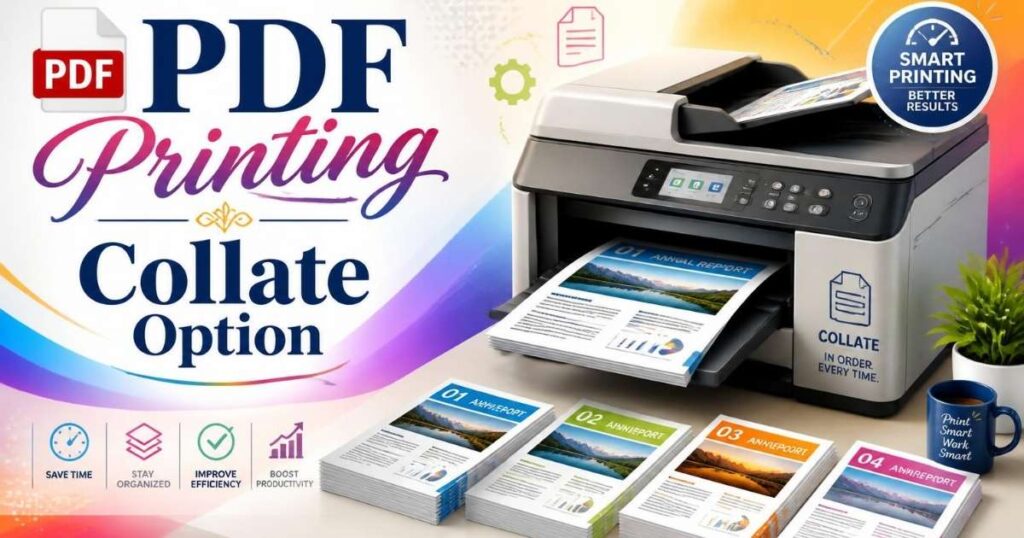
Printing a PDF works much like printing from Word.
Open the file in your preferred PDF reader or PDF software. Select Print, choose the printer, and enter the number of copies.
Look for the Collate checkbox near the copies setting.
If you need complete document sets, enable it.
This becomes especially useful for PDFs containing contracts, invoices, financial reports, manuals, conference packets, and business proposals.
Before printing, check the page range and print preview.
If you’re printing double-sided, review the duplex settings too.
Simple workflow:
Open PDF → Print → Copies → Collate → Preview → Print
Remember that the exact print panel can differ between PDF applications and printer drivers.
Common Uses
The Collate option becomes useful whenever a PDF contains several pages and you need multiple complete copies.
Common examples include:
- Legal documents and contracts
- Business proposals
- Financial reports
- Conference packets
- Training materials
- Instruction booklets
- Product catalogs
- Employee manuals
- Invoices
Imagine a company needs 25 copies of a 15-page training manual.
Collating lets the printer organize each copy as a complete set.
Without it, employees might receive stacks containing all page 1s, followed by all page 2s.
That creates extra manual sorting.
Conversation example:
Trainer: “Can you print 25 copies of this PDF?”
Assistant: “Sure. I’ll enable Collate so each packet stays together.”
For document distribution, that’s usually the cleaner approach.
Common Collate Printing Examples
Collation isn’t limited to office reports.
Any multi-page document that needs to remain together can benefit from it.
The deciding factor is simple: Do you need complete sets?
If yes, Collate usually makes sense.
Example: School Assignment
A teacher needs 20 copies of a six-page assignment.
With Collate enabled, each student’s packet contains:
1-2-3-4-5-6
The next packet follows the same sequence.
That saves the teacher from manually sorting 120 pages.
It also reduces the chance that page 4 from one assignment ends up with page 5 from another.
Teacher: “I need 20 complete packets.”
Student assistant: “I’ll turn on Collate before printing.”
For classroom handouts, worksheets, study guides, and multi-page assignments, collated printing can make distribution much easier.
Example: Business Presentation
Imagine a sales team needs 12 copies of a 10-page presentation.
With Collate enabled, each person receives one complete presentation.
The output looks like:
1-2-3-4-5-6-7-8-9-10
Then the next complete set begins.
This matters during meetings because nobody wants to spend five minutes sorting pages before a presentation.
Sales manager: “Are the client packets ready?”
Assistant: “Yes. Each copy is already collated.”
If the printer also supports stapling, you may be able to select Collate and staple for even easier distribution.
Example: Employee Handbook
Employee handbooks often contain dozens of pages.
Suppose you need 50 copies for new employees.
Collated printing keeps every handbook together from the first page through the final page.
That makes document assembly faster and reduces manual sorting.
It also helps when you print large batches on an office copier or network printer.
HR manager: “Can you print 50 handbooks?”
Office assistant: “Yes. I’ll use Collate and test a couple first.”
For large document sets, that simple setting can save substantial time.
When Should You Use Collated Printing?
Use collated printing whenever each person needs a complete document set.
It’s especially useful for multi-page documents printed in several copies.
Think about what happens after the printer finishes. If you want to pick up a stack and immediately hand one complete copy to each person, Collate is usually the right choice.
Common examples include:
- Reports
- Contracts
- Manuals
- Proposals
- Meeting packets
- Training materials
- School assignments
- Conference packets
The bigger the job, the more valuable collation becomes.
Nobody wants to manually arrange hundreds of pages after printing.
Best Situations
Collated printing works best when the pages belong together as one finished document.
Use it for:
- Employee handbooks
- Annual reports
- Financial reports
- Business proposals
- Legal contracts
- Training manuals
- Product catalogs
- Instruction booklets
- Conference materials
It’s particularly helpful when you’re printing multiple copies.
For a one-page invoice, Collate doesn’t offer much practical benefit. There’s no meaningful page sequence to organize.
Quick rule:
Complete sets needed? → Collate.
Pages need grouping? → Consider uncollated printing.
That rule covers most everyday printing situations.
Benefits in Offices
Offices often print the same document for several people.
Without collation, staff may spend time sorting pages manually. That creates extra work and increases the risk of misplaced pages.
Collated printing supports faster document distribution.
It can help with:
- Office productivity
- Meeting preparation
- Employee onboarding
- Client presentations
- Report distribution
- Training sessions
- Contract preparation
A busy office copier can also combine collation with stapling and duplex printing.
That creates ready-to-distribute document sets with fewer manual steps.
Conversation example:
Coworker: “Why did we finish so quickly?”
You: “The copier did the sorting for us.”
That’s one of the quiet advantages of good print settings.
When Should You Use Uncollated Printing?
Uncollated printing makes sense when you don’t want complete document sets.
Instead, you want identical pages grouped together.
That arrangement can help with manual sorting, document assembly, insert printing, or page-specific processing.
For example, imagine printing 50 copies of a four-page form.
You may want all 50 copies of page 1 together, followed by all 50 copies of page 2.
That’s an uncollated job.
Read More : V/R Meaning: What Does It Mean? Full Guide for 2026
Good Uses for Uncollated Output
Uncollated output can be useful in specific workflows.
Consider it when you need:
- Manual sorting
- Document assembly
- Insert printing
- Separate page distribution
- Page-specific processing
- Certain bulk production tasks
Commercial print shops may use grouped output as part of a larger production workflow.
The same principle can apply to an office document assembly line.
Conversation example:
Worker: “Should these pages stay grouped?”
Supervisor: “Yes. We’re assembling the document manually.”
In that case, choosing Collate would create extra work rather than reducing it.
Does Collating Affect Printing Speed?
Collating can affect how a print job gets processed. However, the difference isn’t always dramatic.
Several factors matter more than the checkbox itself.
Your printer model, driver, document size, number of copies, printer memory, connection, and software can all influence performance.
Small Jobs
For a small job, the difference may be barely noticeable.
Suppose you’re printing two copies of a three-page document.
Whether you select Collate or not, the job contains only six printed pages.
Any processing difference will usually be minor.
Your printer may spend a little extra time organizing the job, but you probably won’t notice it.
Example:
2 copies × 3 pages = 6 pages
That’s a small workload.
For everyday documents, choose the arrangement you actually need rather than worrying about tiny speed differences.
Large Jobs
Large jobs can involve more processing.
Imagine printing 100 copies of a 30-page manual.
That’s 3,000 pages.
The printer or computer may need to manage a much larger print job, especially when the document contains graphics, high-resolution images, or complex layouts.
Printer memory and the printer driver can influence how efficiently the job gets processed.
A network printer may also have several jobs waiting in its print queue.
In these situations, a short test run makes sense.
Realistic Expectation
Don’t assume that disabling Collate will automatically make a large print job dramatically faster.
Sometimes the difference is negligible.
Other times, a particular printer may process collated jobs differently.
The practical approach is simple:
- Test large jobs first.
- Check printer memory requirements.
- Keep printer drivers updated.
- Avoid unnecessary high-resolution settings.
- Confirm the correct printer.
- Use the needed page range.
For most everyday printing, organization matters more than a tiny speed difference.
Does Collating Use More Ink?
Collating itself doesn’t normally make the printer consume more ink or toner per printed page.
If you print 30 pages, the printer still prints 30 pages whether you arrange them as collated or uncollated output.
The bigger factors are the document’s content and print settings.
Ink consumption can change because of:
- Graphics and images
- Dark page backgrounds
- Print resolution
- Print quality settings
- Color printing
- Paper type
- Printer model
For example, printing a photo-heavy financial report can use far more ink than printing a text-only document.
Collating simply changes page organization.
It doesn’t magically add ink to the pages.
Conversation example:
You: “Will Collate drain my toner faster?”
Coworker: “Not by itself. The amount of printed content matters much more.”
For large jobs, focus on accurate page counts and appropriate print quality settings instead.
Does Collating Affect Print Quality?
Collating normally doesn’t change the actual print quality of your pages.
The setting controls page organization rather than print resolution or image quality.
Print quality depends more on factors such as:
- Printer model
- Print resolution
- Ink or toner
- Paper quality
- Print quality setting
- Document graphics
- Printer condition
- Printer driver
Changing Collate from on to off shouldn’t suddenly make text sharper or images blurrier.
However, a large print job can expose other issues. Low toner, poor paper, clogged printheads, or incorrect printer settings can affect the final result.
Quick distinction:
Collate: controls page order.
Print quality: controls how the content looks.
Duplex: controls whether pages print on both sides.
Stapling: physically attaches the pages.
Keeping these settings separate makes the entire print process easier to understand.
Here’s the next section, with practical troubleshooting and clear collate vs uncollated explanations woven in naturally.
Collate and Staple Printing Explained
Collate and staple combines two separate finishing tasks.
Collation arranges your pages into complete document sets. Stapling then joins each finished set together.
Imagine printing 20 copies of a 10-page employee handbook. With both options enabled, the printer can produce 20 complete sets and staple each one.
The result looks something like:
1-2-3-4-5-6-7-8-9-10 → Staple
Then the next complete set follows.
This feature is especially useful on office copiers and higher-end multifunction printers.
It saves you from collecting pages, sorting them, and stapling every packet by hand.
The collate vs uncollated choice still matters. If you disable Collate, stapling may group the wrong pages together depending on the printer’s capabilities and settings.
Always check the print preview and test a small batch first.
How It Works
When you select Collate and staple, the printer or print system first organizes the pages into complete document sets.
It then sends each set through the finishing process.
For example:
- Copy 1 → Pages 1–8 → Staple
- Copy 2 → Pages 1–8 → Staple
- Copy 3 → Pages 1–8 → Staple
The exact process depends on the printer.
Some multifunction printers have built-in finishing hardware. Others may rely partly on the computer, printer driver, or software to arrange the pages.
You may find options for Collate, Staple, Duplex, and other finishing features in the printer’s settings window.
Conversation example:
You: “Can the copier sort and staple these?”
Coworker: “Yes. Select Collate and Staple before printing.”
That combination works particularly well for ready-to-distribute packets.
Common Uses
Collate and staple printing works best when each printed group needs to leave the printer ready for distribution.
Common uses include:
- Employee handbooks
- Meeting agendas
- Training manuals
- Business proposals
- Conference packets
- School assignments
- Legal documents
- Financial reports
- Instruction booklets
For example, a company might print 40 copies of a training manual.
Instead of sorting 40 stacks manually, the copier can create complete sets and staple them.
That saves time during busy office workflows.
Quick example:
20 copies × 12 pages = 240 printed pages
With the right office copier, those pages can become 20 finished packets.
However, always verify that your printer supports the finishing feature. Not every printer offers automatic stapling.
Common Printing Mistakes Related to Collation
Collation problems often start with a simple setting mistake.
You might choose the wrong number of copies, forget to enable Collate, or select the wrong printer driver.
These mistakes become much more expensive when you’re printing hundreds of pages.
The good news? Most are easy to prevent.
Before a large job, check:
- Number of copies
- Collate setting
- Page range
- Print preview
- Printer selection
- Duplex settings
- Page orientation
- Paper supply
Understanding collate vs uncollated printing also helps you spot problems quickly.
If you expect complete document sets but receive grouped pages, check the Collate setting first.
Forgetting to Enable Collate
This is probably the easiest mistake to make.
You enter five copies, click Print, and walk away. When you return, all the copies of page 1 are stacked together.
That’s what uncollated output can look like.
For a five-page document, you might receive:
1-1-1-1-1 → 2-2-2-2-2 → 3-3-3-3-3
If you wanted complete sets, that’s frustrating.
Before printing multiple copies, check the copies section and make sure Collate is enabled.
Conversation example:
You: “Why are all page 1s together?”
Coworker: “You probably printed them uncollated.”
It’s a tiny checkbox with a big impact on large document jobs.
Ignoring Print Preview
A print preview can catch problems before they become piles of wasted paper.
Don’t skip it when printing an important or complicated document.
Look for:
- Missing pages
- Incorrect page range
- Wrong orientation
- Unexpected scaling
- Blank pages
- Incorrect page sequence
- Duplex problems
Preview is especially helpful when printing PDFs, contracts, reports, or booklets.
Conversation example:
You: “The pages looked strange after printing.”
Coworker: “Did you check the preview first?”
A quick preview doesn’t guarantee that every printer behavior will match perfectly. It does give you an early warning.
For a large job, print one or two test copies whenever possible.
Confusing Copies With Collation
Copies and Collate control two different things.
The number of copies tells the printer how many times to reproduce the document.
Collate tells it how to arrange those copies.
For example, suppose you need three copies of a four-page document.
Copies = 3
Collate = ON
Result:
1-2-3-4 | 1-2-3-4 | 1-2-3-4
With Collate OFF, the result may be:
1-1-1 | 2-2-2 | 3-3-3 | 4-4-4
That’s the heart of collate vs uncollated printing.
Think of it this way:
Copies answers “How many?”
Collate answers “How should they be arranged?”
Once you understand that difference, the setting becomes much less confusing.
Using Incorrect Printer Drivers
A printer driver helps your computer communicate with the printer.
If you use an outdated, generic, or incorrect driver, some print settings may behave unexpectedly.
You might notice missing options or unusual output.
For example, Collate may appear differently depending on the selected printer and driver.
Before troubleshooting, check that:
- The correct printer is selected.
- The manufacturer’s driver is installed when appropriate.
- The driver is reasonably current.
- The printer model matches the selected device.
This matters even more with office copiers and network printers.
Conversation example:
You: “The Collate option disappeared.”
Technician: “Check whether the correct printer driver is installed.”
Don’t immediately blame the printer. The computer-to-printer connection can be part of the problem.
Troubleshooting Collate Problems
When Collate doesn’t work as expected, start with the simplest checks.
First, confirm the number of copies. Then verify the Collate setting.
After that, check your printer, driver, software, and document itself.
Common causes include:
- Collate is disabled.
- The wrong printer is selected.
- The printer driver has an issue.
- The application handles collation differently.
- Printer memory is limited.
- A network print job behaves unexpectedly.
A small test print can often reveal the cause.
Try two copies of a short document before repeating the large job.
Printer Ignores Collate Setting
If the printer ignores Collate, check where the setting comes from.
Some applications manage collation. Others rely more heavily on the printer driver or printer itself.
Start by opening the print settings again.
Confirm that:
- Collate is enabled.
- The correct printer is selected.
- The correct number of copies is entered.
- The printer driver matches your printer.
- No conflicting settings override your selection.
Then print a short test.
If the problem continues, try printing from another application.
For example, compare a Microsoft Word document with a PDF.
Conversation example:
You: “Collate is checked, but the pages are still grouped.”
Technician: “Try another application and verify the printer driver.”
That test can help determine whether the problem comes from the document software or the printer setup.
Pages Print Out of Order
Pages printing out of order can have several causes.
Don’t assume Collate is always responsible.
First, check the document itself.
Then inspect the selected page range, reverse printing option, print preview, and printer settings.
Also check whether duplex printing changes the way pages appear.
Try printing a small test document containing clearly numbered pages.
For example:
Page 1 → Page 2 → Page 3 → Page 4
If that test prints correctly, the original document may contain unusual formatting or page settings.
Quick checks:
- Confirm page range.
- Disable unexpected reverse printing.
- Check duplex settings.
- Review print preview.
- Test another application.
- Update the printer driver if necessary.
If the pages still appear incorrectly, the printer or software may need deeper troubleshooting.
Network Printer Issues
Network printers add another layer to the printing process.
Your computer sends the job across the network. A print server, queue, or office copier may then process it.
This can sometimes make troubleshooting more complicated.
Start with a small test job.
Check whether the same problem occurs from another computer.
Also confirm that everyone is using the correct printer and driver.
Conversation example:
Employee: “My Collate setting works at home but not here.”
IT staff: “The office network printer may be using a different driver.”
That distinction matters.
A local printer and a network printer can expose different settings even when you use the same document.
If several users experience the same problem, the shared printer configuration may need attention.
Memory Limitations
Large collated jobs can require significant data processing.
Printer memory, or RAM, can become relevant when you’re handling lengthy documents, many copies, graphics, or complex layouts.
For example, printing 100 copies of a 50-page report creates a much larger job than printing two copies of a three-page document.
However, limited printer memory isn’t always the cause of a collation problem.
Your computer, printer driver, software, and network can also influence job processing.
If a large job fails, try reducing the workload.
Try this:
- Print fewer copies at once.
- Test a shorter document.
- Reduce unnecessary graphics.
- Check the printer driver.
- Restart the print job.
- Test the printer from another application.
Conversation example:
You: “It collates correctly with two copies but fails with 100.”
Technician: “Try smaller batches and check the printer’s available resources.”
Breaking a huge job into manageable batches can be a practical workaround when the printer struggles with complex collation.
FAQs
What does collate mean when printing multiple copies?
Collate arranges multiple copies into complete document sets, keeping every page in the correct sequence.
What is collated printing?
Collated printing produces complete multi-page document sets instead of grouping identical pages together during printing.
What are collated copies?
Collated copies contain every page in the correct order, making each printed document ready for distribution.
What does uncollated mean in printing?
Uncollated printing groups identical pages together instead of creating complete document sets for each copy.
Should collate be on or off?
Turn Collate on for complete document sets. Turn it off when you need grouped pages for manual sorting.
Does every printer support collation?
Most modern printers support collation through software or drivers, but available options can vary by printer and setup.
Can I use collate and staple together?
Yes, supported office copiers can collate pages into complete sets and staple each set automatically.
Does collation increase printing costs?
Collation usually doesn’t increase ink or toner costs because it changes page organization, not the number of pages printed.
Conclusion
Understanding collate vs uncollated printing makes your print jobs much easier. Collate vs uncollated simply describes how multiple copies are arranged. Collated printing keeps each document set together in the correct page order. Uncollated printing groups matching pages together instead. When you need reports, contracts, manuals, assignments, or meeting packets, choose Collate. It saves time and reduces manual sorting. You can also combine Collate with stapling on supported office copiers.
The collate vs uncollated choice depends on what you need after printing. Choose uncollated printing when you plan to sort or assemble pages manually. Before starting large jobs, check your print settings and preview. Make sure you select the correct number of copies. Also verify the page range and printer. Once you understand collate vs uncollated, choosing the right setting becomes simple. A quick check can prevent wasted paper, time, and effort.
